


Note Inspector
The Note inspector keeps a note’s structure, linked items, and callouts within reach while you write. Open View → Secondary Side Bar or click the right-panel button at the end of the editor toolbar, then select the inspector tab. You can toggle the panel with Cmd+Option+B on macOS or Ctrl+Alt+B on Windows and Linux.
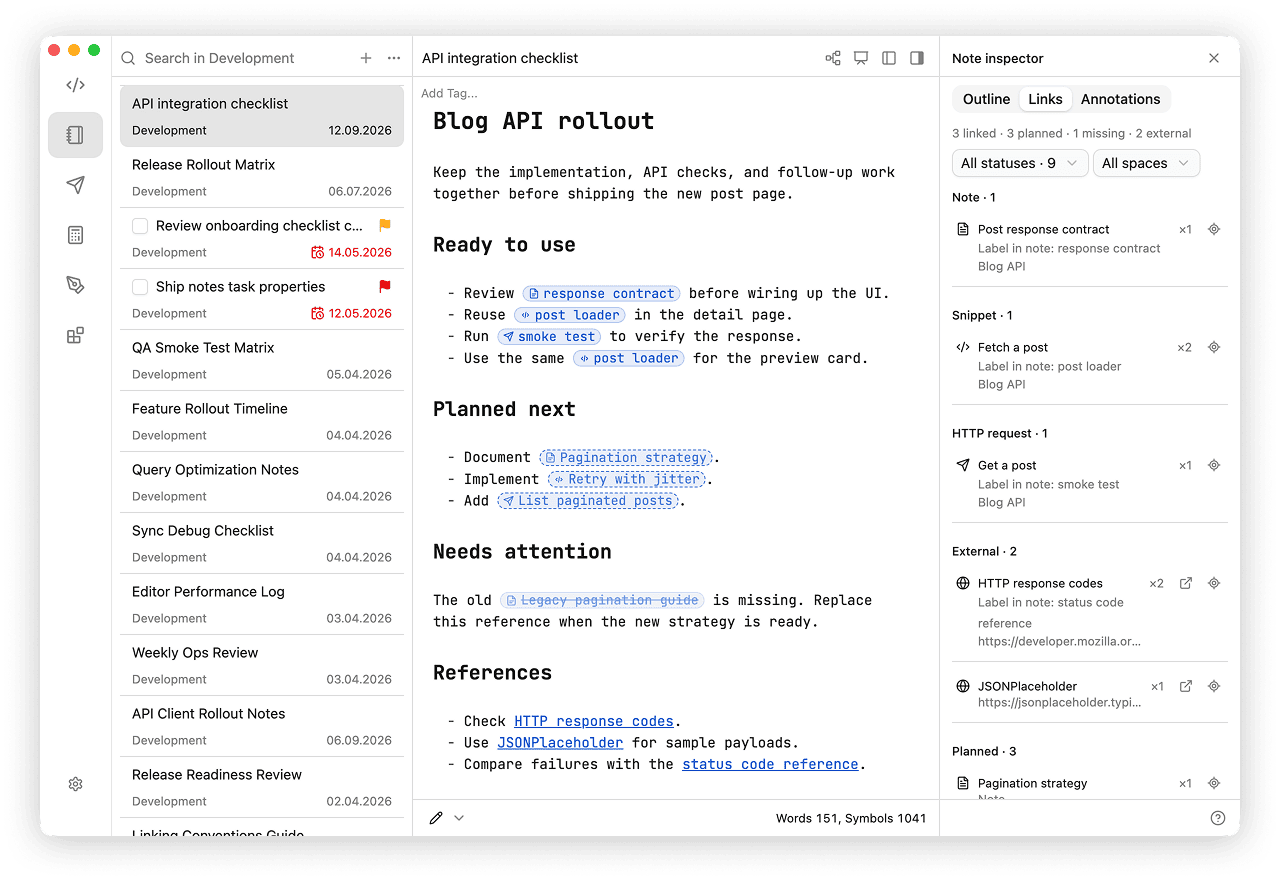
Choose Outline, Links, or Annotations. Drag the inspector’s left edge to resize it. The selected tab, panel visibility, and width are remembered. The ? button at the bottom explains the actions in the current tab.
Outline
Use Outline to navigate a long note. Headings H1–H6 appear in a tree; expand or collapse sections to focus on the structure you need. Click a heading to jump to it. The current section is highlighted as you move the cursor in the editor.
In Raw and Live Preview, drag a heading:
- Above or below another heading to move the section to the same level.
- Onto a heading to nest the section inside it.
The entire section moves with its content and nested headings. Preview supports navigation only. Headings inside code blocks, quotes, and lists are excluded.
Links
Use Links to see which items a note uses and what is still planned or missing.
- Note, Snippet, and HTTP request groups contain existing linked items.
- External contains web addresses.
- Planned contains placeholders for items you intend to create.
- Missing contains internal links whose targets cannot be found.
Each row shows the target’s name and location. Custom labels used in the note are shown alongside the target name. Repeated references share a row with an occurrence count. The summary counts unique targets and addresses across the whole note.
Filter by status and space to narrow the list, for example to planned snippets. The list updates as you edit.
Find a link in the note
Click the locate button (the target icon) to jump to a link. The cursor moves to the link text without selecting it; Live Preview reveals its Markdown for editing. Click again to cycle through repeated occurrences.
Create a planned item
In Raw or Live Preview, hold Cmd on macOS or Ctrl on Windows/Linux and click the locate button beside a planned item. This creates the item and opens its usual space, just like clicking the placeholder in the editor with the same modifier. Use Back to return to your note.
See Plan Notes, Snippets, and Requests for inserting placeholders and choosing the item type.
Open an external link
Click the external-link button beside a web address to open it in your browser. The locate button takes you to its occurrence in the note instead.
External links include HTTP and HTTPS Markdown links, reference links, autolinks, and plain URLs. Code examples and image sources are excluded. massCode does not check website availability or classify external addresses as missing.
Annotations
Use Annotations to find callouts throughout the note. All supported types appear in groups: Todo, Note, Important, and Warning. Filter by type to focus on a group, then click the locate button to jump to a callout in the editor.
The list and counts update as you edit. Each callout has its own row, even when its text matches another callout. Deleting a callout from the note removes it from the inspector.
Use a Todo callout to mark unfinished writing, such as an example to add or a fact to check. Callouts remain ordinary Markdown in the note.