


Notes
Notes is the markdown writing space inside massCode. Use it for project documentation, technical notes, drafts, meeting notes, and personal knowledge bases when a snippet is too small and a full note makes more sense.
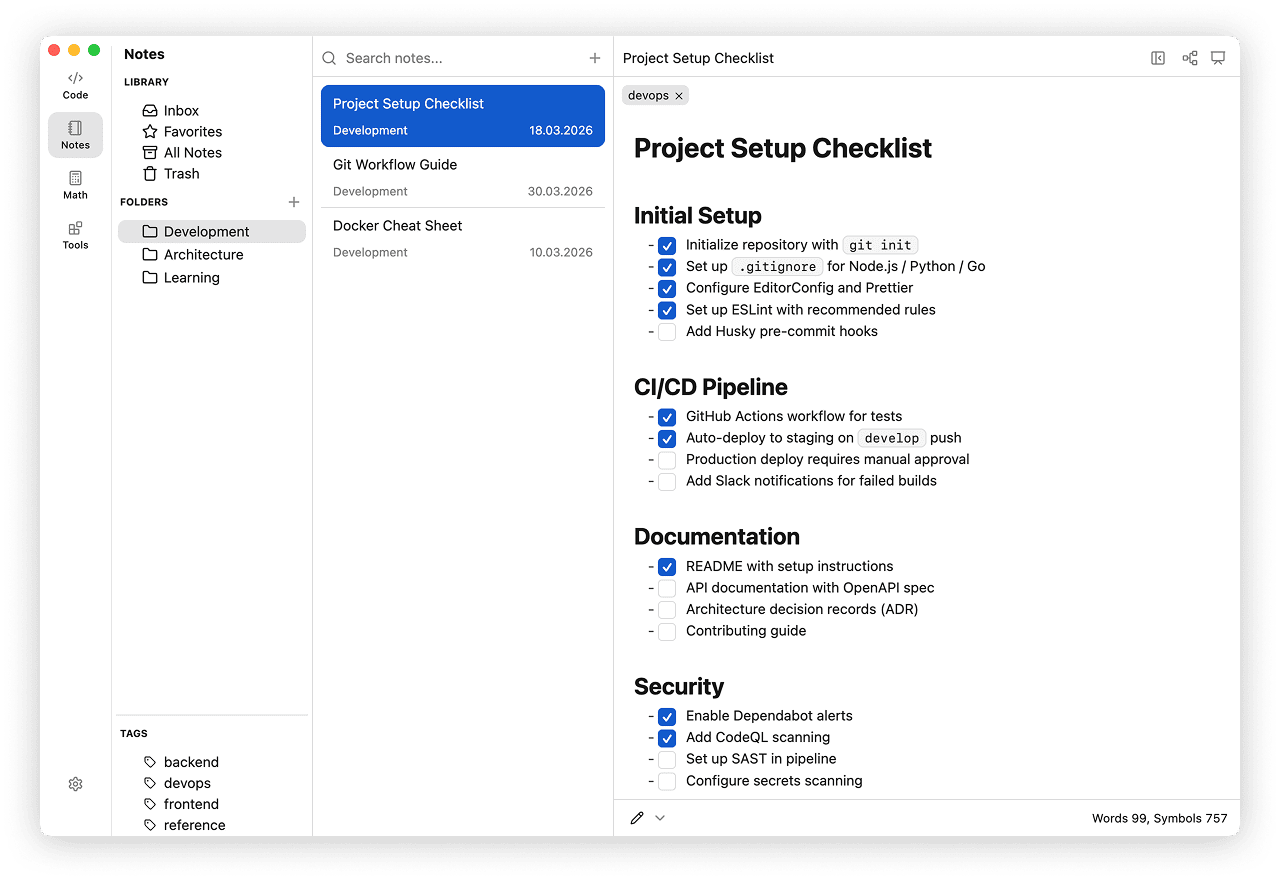
Access Notes from the Notes icon in the Space rail. The layout matches Code: Library on the left, notes list in the middle, editor on the right. You can also open the Notes Dashboard from the grid button in the Notes sidebar to see activity, recent notes, and graph-based navigation before opening a document.
When to use Notes
Use Notes when you want to keep markdown documents close to your snippets and daily workflow.
- write technical documentation and reference material
- keep research notes or project logs
- track tasks with status, priority, and due dates
- prepare presentations from markdown
- turn note outlines into mind maps
Note Inspector
Use Note inspector to navigate and reorder sections, inspect links, and find callouts while writing. Planned links let you leave placeholders for notes, snippets, and HTTP requests, then create them when you are ready.
Creating a Note
- Select "File" > "New Note" from the menu bar.
- Press Cmd+N on macOS or Ctrl+N on Windows or Linux.
See Tasks to create task notes with structured status, priority, and due date properties.
To duplicate an existing note, right-click it in the Notes list and choose Duplicate. The copy stays in the same folder and its title is selected for renaming.
Dashboard
Dashboard gives Notes a home screen with a quick overview of your markdown workspace.
- Overview cards for notes, words, folders, and tags
- Activity Heatmap for recent note updates
- Recent Notes and Top Linked Notes lists
- Notes Graph preview with a shortcut to the fullscreen graph
- Widget visibility settings for hiding blocks you do not need
See Dashboard for the full walkthrough.
Editor Modes
Switch between three editor modes using the mode selector in the bottom-left of the editor. You can also use Editor > Mode from the menu bar when a note is focused.
- Editor - raw markdown editing.
- Live Preview - split view with source and rendered preview side by side.
- Preview - read-only rendered view.
Editor Features
The editor is built on CodeMirror 6 and includes:
- Syntax highlighting for fenced code blocks
- Smart list indentation with automatic ordered list renumbering
- Tab / Shift-Tab indentation
- Right-click formatting menu in editable modes
- Inline markdown formatting shortcuts in editable modes
- Editable markdown tables in Live Preview
- One-click copying for fenced code blocks in Live Preview and Preview
- Line break normalization for hard-wrapped terminal text from Editor > Normalize Line Breaks
- Internal links to notes, snippets, and HTTP requests
- Task notes with status, priority, due dates, and smart views
- Mermaid diagram support
- Image embedding
- Callout blocks
Editor Context Menu
Right-click in Live Preview to apply markdown formatting or insert a table, callout, horizontal rule, or code block. The context menu is disabled in Preview mode because the rendered note is read-only.
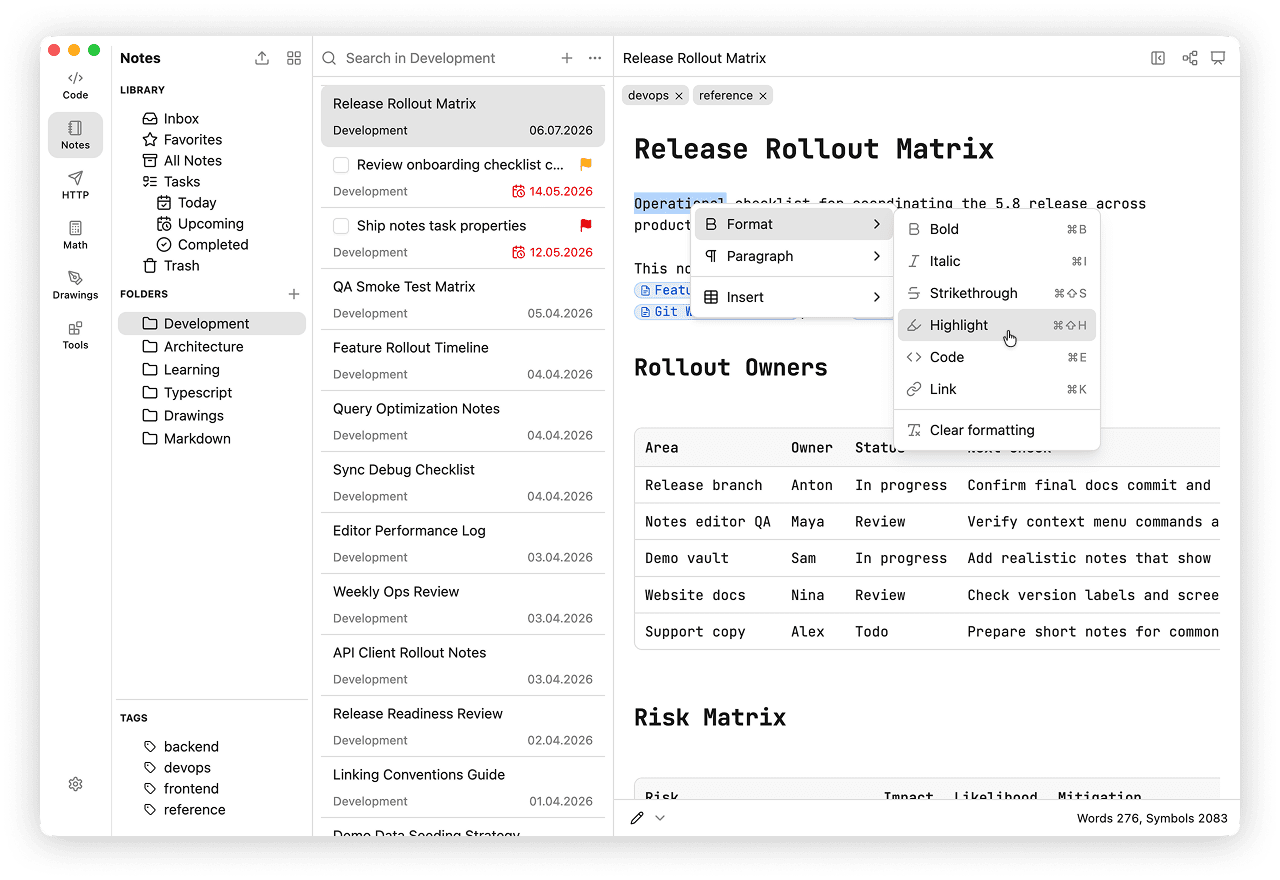
- Format adds bold, italic, strikethrough, highlight, inline code, links, or removes formatting from the current selection.
- Paragraph switches the current line between body text, headings, bullet lists, numbered lists, task lists, and quotes.
- Insert adds tables, callouts, horizontal rules, and fenced code blocks.
Editable Tables
In Live Preview, markdown tables render as interactive table blocks while the note still stays plain Markdown in the vault.
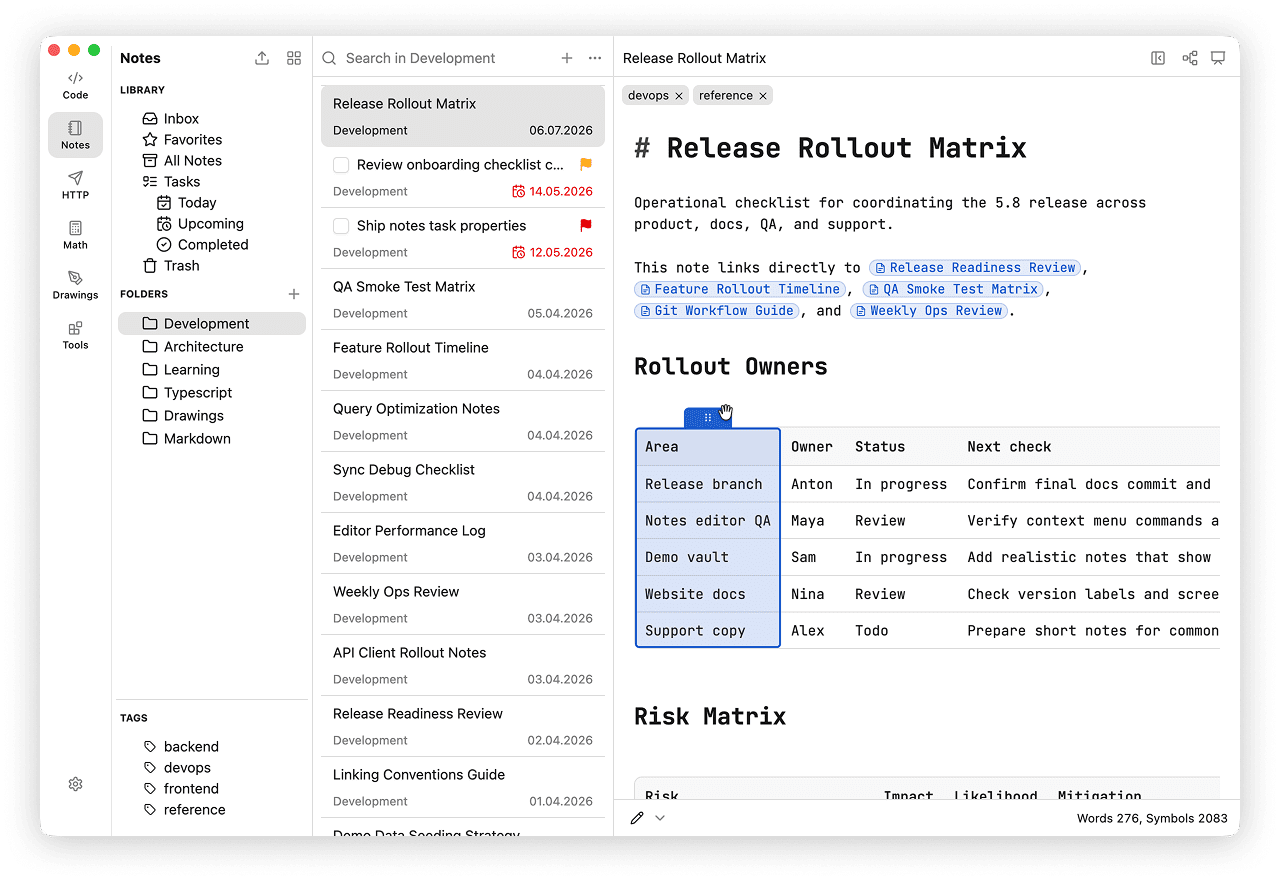
- Click a table cell to edit it in place.
- Press Tab and Shift+Tab to move between cells.
- Press Enter to move to the cell below. When the cursor is in the last body row, massCode adds a new row.
- Hover the table edge to add a column to the right or a row below.
- Right-click an active table cell and use the Table submenu in the context menu to insert or delete rows and columns, or set column alignment.
- Drag row and column handles to reorder the table.
- Paste tabular data from a spreadsheet or TSV source to create or fill table cells.
Formatting Shortcuts
The following shortcuts work in Editor and Live Preview modes:
- Cmd+B / Ctrl+B for bold
- Cmd+I / Ctrl+I for italic
- Cmd+Shift+S / Ctrl+Shift+S for
strikethrough - Cmd+Shift+H / Ctrl+Shift+H for highlight
Press the same shortcut again to remove the markdown markers from the current selection.
Editor Preferences
Customize the editor appearance and behavior in preferences:
- Font size and font family
- Code font family - separate setting for code blocks
- Line height - Compact, Default, or Relaxed
- Indent size
- Limit width - toggle to constrain the editor width
- Line numbers - toggle to show or hide line numbers
- Wrap table cells - wrap long cell content so wide tables stay within the editor
AI Assistant
Use AI Assistant to write and organize notes, update task status and due dates, or find related records. Open the AI assistant tab in the inspector and describe the task. Ask for a preview if you want to review edits before applying them.