
Snippets
Snippets are the core building blocks of the Code space. Use them to save code you reuse across projects, keep reference examples close at hand, and build your own searchable code library over time.
Adding a Snippet
Use one of these methods:
- Select "File" > "New Snippet" from the menu bar.
- Click the "+" button next to search in the second column.
- Press Cmd+N on macOS or Ctrl+N on Windows or Linux.
INFO
The new snippet is created in the currently selected folder, or in "Inbox" if no folder is selected.
Language Selection
Click the language label in the editor footer, then choose a language from the dropdown. The default language is "Plain text".
Moving Snippet
Drag and drop the snippet to the desired folder.
Deleting Snippet
Right-click the snippet and choose "Delete".
INFO
The snippet is moved to "Trash". You can restore it later by dragging it back to a folder.
Copying Snippet
Use one of these methods:
- Select "Editor" > "Copy Snippet to Clipboard" from the menu bar.
- Press Shift+Cmd+C on macOS or Shift+Ctrl+C on Windows or Linux.
Formatting Snippet
Use Prettier to format supported snippet languages without leaving massCode.
Use one of these methods:
- Select "Editor" > "Format" from the menu bar.
- Press Shift+Cmd+F on macOS or Shift+Ctrl+F on Windows or Linux.
Available Languages:
- Bash / Dockerfile / Gitignore / INI /Properties
- CSS / Sass / SCSS / Less
- GraphQL
- HTML
- Jade / Pug
- Java
- JavaScript / TypeScript
- JSON / JSON5
- Markdown
- PHP
- TOML
- XML
- YAML
Use Editor > Normalize Line Breaks to remove hard terminal wraps from the selection or the whole snippet.
Real-time Render HTML & CSS
Use code preview when you want to test a small HTML/CSS idea directly inside massCode.
- Add a new snippet or select an existing one.
- Add a second fragment.
- Set fragment languages to HTML & CSS.
- Select "Editor" > "Preview Code" from the menu bar or press Alt+Cmd+P on macOS or Ctrl+Alt+P on Windows or Linux.
JSON Visualizer
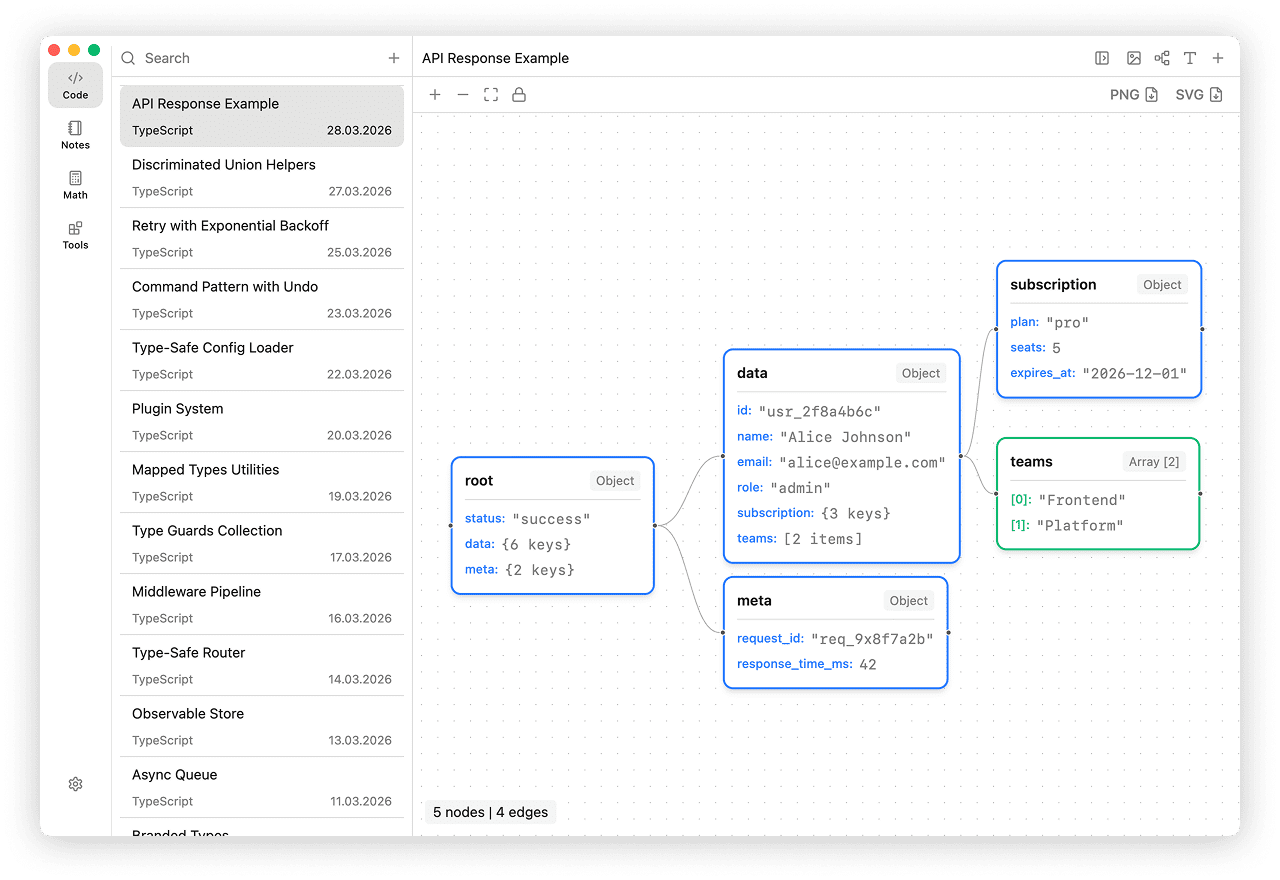
Use JSON Visualizer when nested JSON is too dense to read comfortably as raw text. massCode turns the current JSON snippet into a visual graph, so objects, arrays, and relationships are easier to scan.
- Add a new snippet or select an existing one.
- Click the language selector in the editor footer and choose "JSON".
- Select "Editor" > "Preview JSON" from the menu bar or press Alt+Cmd+J on macOS or Ctrl+Alt+J on Windows or Linux.
- Use zoom controls and Fit to navigate larger payloads.
- Click a node to inspect its content.
- Export the visualization as PNG or SVG when you want to share it.