


Command Palette
The Command Palette gives you a keyboard-first way to move around massCode without reaching for the Space rail or sidebars. Use it to jump to spaces, open snippets, notes, and HTTP requests, run common actions, and create new items from any space.
Open it with Cmd+P on macOS or Ctrl+P on Windows and Linux.
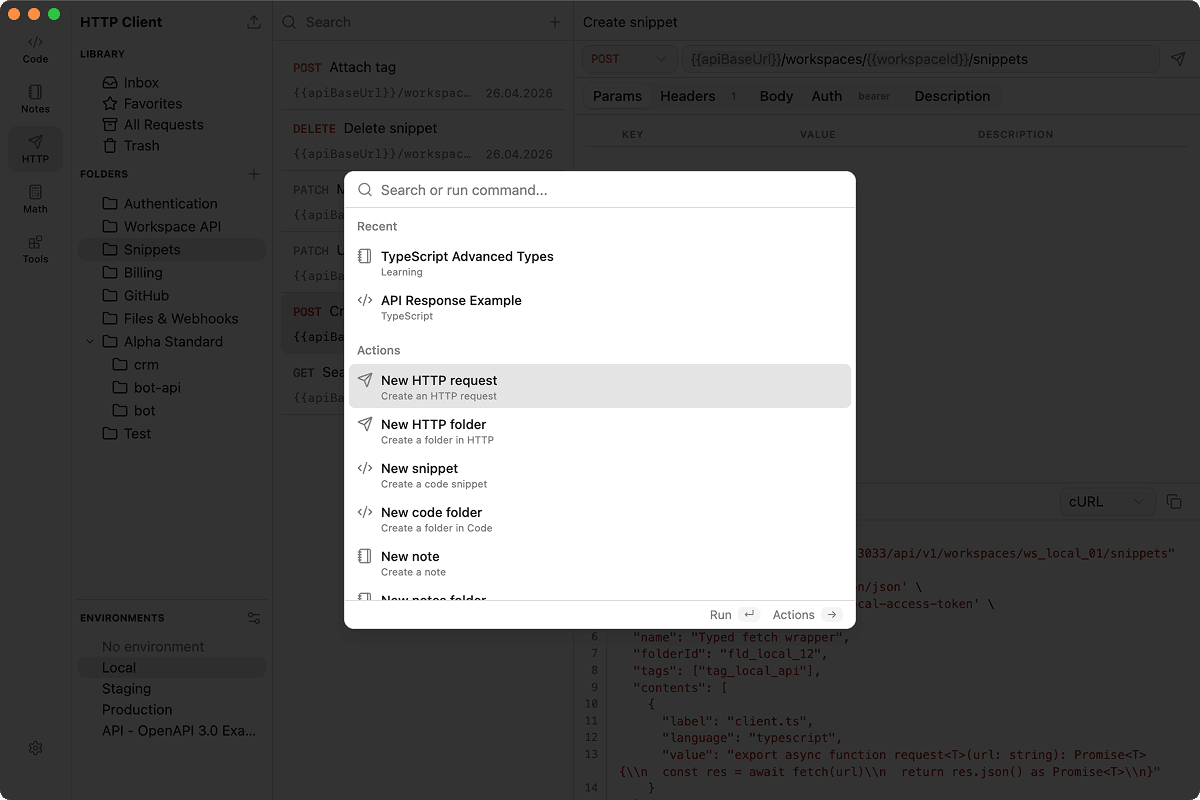
What You Can Find
The palette searches across searchable content:
- snippets in Code
- notes in Notes
- HTTP requests in HTTP
- spaces
- commands
- recently opened items
Snippets, notes and HTTP requests are found by words in their names and text. Each result shows why it was found, such as Matches the name or Has your words, and can show a short excerpt from the record; words that matched are highlighted. Weaker matches appear under Possibly related; after the first three, they are collapsed into a single row that you can expand.
Among results with similar relevance, items you open often move higher over time.
Palette search also supports space scopes. In massCode 5.6 and later, it can also use tag and folder filters. See Search for the full search workflow.
With semantic search turned on, the palette also finds records related to your query by meaning. Run Turn on semantic search to set it up. See Search by meaning.
Run Commands
Commands create new content or open app-level actions without switching spaces first.
Examples:
- create a new snippet
- create a new note
- create a new HTTP request
- create folders in Code, Notes, or HTTP
- open Preferences
Press Cmd+Shift+P on macOS or Ctrl+Shift+P on Windows and Linux to open the palette directly in command mode. You can also type > after opening the palette.
Search Commands
Use command mode when you want to run an action instead of opening existing content.
- Open the palette.
- Type
>. - Type the command name, such as
new snippet,new note, orpreferences. - Press Enter to run the selected command.
Press Esc to leave command mode and return to the full palette.
Create From Search
When you search for content, the palette also offers to create a new item from the query. The create actions are pinned at the bottom of the palette, above the footer.
- Create a snippet in Code Inbox.
- Create a note in Notes Inbox.
- Create an HTTP request in HTTP Inbox.
- Create an HTTP request from a URL.
Press Shift+Enter to run the first create action without moving the selection to it. Enter runs a create action only when it is selected and the search for the current query has finished.
Actions Panel
Open the actions panel for the selected result with Right Arrow or Cmd+K on macOS and Ctrl+K on Windows and Linux.
Actions depend on the selected result. For example, you can copy a title, copy snippet content, duplicate a snippet or HTTP request, copy an HTTP request URL, or run the selected command.
You can also duplicate a note while preserving its content, description, properties, and tags.
Use Left Arrow or Esc to close the actions panel.