


Clipper
massCode Clipper saves web content from your browser into the local massCode app. Use it to send selected code to Code, selected text or readable page content to Notes, and pages or links to HTTP as GET requests.
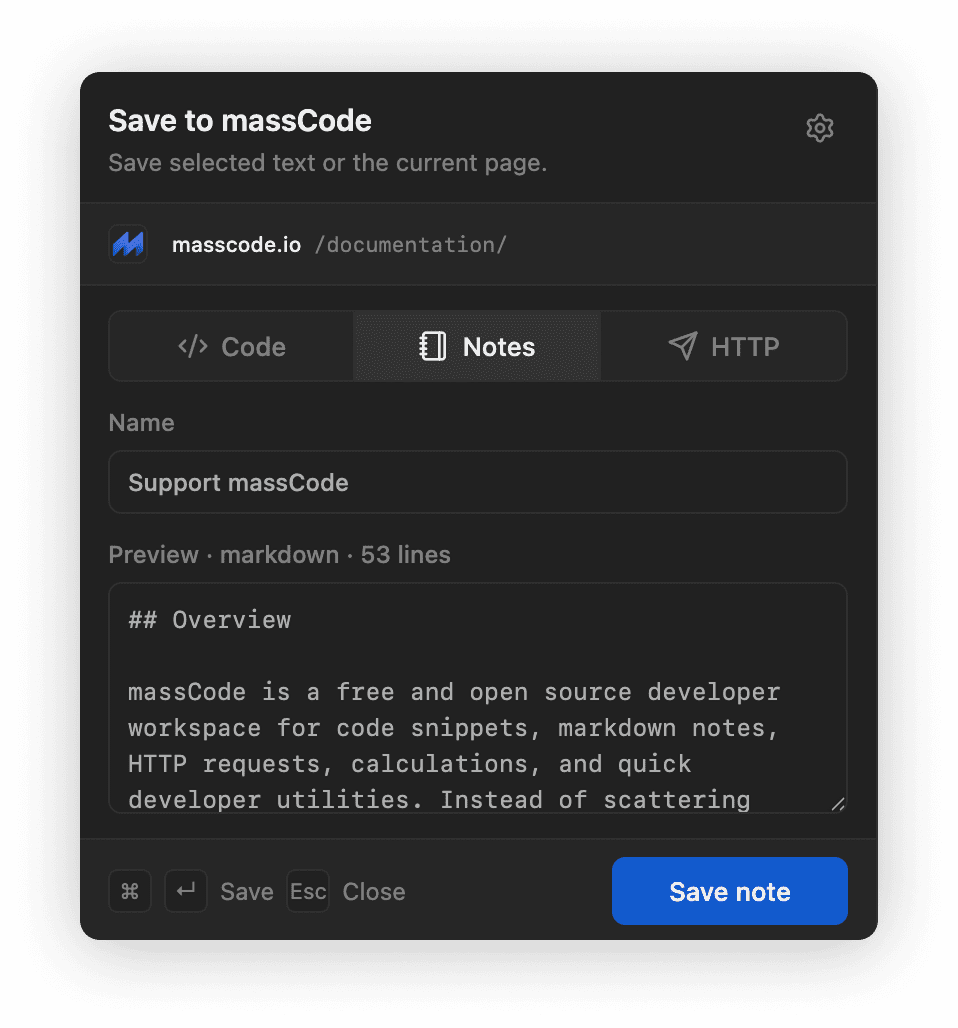
Install the Chrome version from the Chrome Web Store. For Firefox, Safari, or local testing, download a build from this page or install the Clipper from a local repository build.
Enable The Local API
The Clipper talks to massCode through the local Integration API.
- Open massCode.
- Open Preferences.
- Go to API.
- Keep the API Port value. The default is
4321. - Enable API integrations.
- Click Generate token.
- Copy the generated token. The full token is shown only after generation.
If you change the API port, reload the app before using the new port from the browser extension.
Download The Clipper
Download the archive for your browser when you want to install the Clipper locally:
Unzip the archive before loading it into the browser. Browsers do not load these local development builds directly from the ZIP file.
Build The Clipper Locally
Run the build from the repository root:
pnpm integrations:clipper:buildThis creates browser-specific builds:
integrations/clipper/dist/chromeintegrations/clipper/dist/firefoxintegrations/clipper/dist/safari
After installing the extension in a browser, open the Clipper popup, set the API port, paste the API token, and click Save settings.
Chrome
Install the published Chrome extension from the Chrome Web Store.
If you downloaded the archive, unzip clipper-chrome.zip first.
If you are building from the repository, build the Chrome target:
pnpm integrations:clipper:build:chrome- Open
chrome://extensions. - Enable Developer mode.
- Click Load unpacked.
- Select the unzipped Chrome build folder, or
integrations/clipper/dist/chromewhen building locally.
After rebuilding, return to chrome://extensions and reload the unpacked extension.
Firefox
Firefox does not load an unpacked extension by selecting the dist folder.
If you downloaded the archive, unzip clipper-firefox.zip first.
If you are building from the repository, build the Firefox target:
pnpm integrations:clipper:build:firefoxThen:
- Open
about:debugging#/runtime/this-firefox. - Click Load Temporary Add-on.
- Select
manifest.jsoninside the unzipped Firefox build folder, orintegrations/clipper/dist/firefox/manifest.jsonwhen building locally.
The temporary extension stays installed until Firefox restarts. Use Reload on about:debugging after rebuilding.
Safari
If you downloaded the archive, unzip clipper-safari.zip first.
If you are building from the repository, build the Safari target:
pnpm integrations:clipper:build:safariThen:
- Open Safari.
- Choose Safari > Settings.
- Open Advanced and enable Show features for web developers or Show Develop menu in menu bar.
- Open the Developer tab.
- Enable Allow unsigned extensions.
- Click Add Temporary Extension....
- Select the unzipped Safari build folder, or
integrations/clipper/dist/safariwhen building locally. - Enable the extension in Safari's Extensions settings if Safari does not enable it automatically.
Safari removes temporary extensions after 24 hours or when you quit Safari. Safari also resets Allow unsigned extensions when you quit the browser, so enable it again before the next local test session.
Capture Content
Use the Clipper popup when you want to review or edit the item name before saving.
- Code saves selected text as a snippet. Select text on the page first.
- Notes saves selected text when available, otherwise it saves the readable page content.
- HTTP saves the current page URL as a
GETrequest.
You can also right-click the page, selected text, or a link and choose Save to massCode. Context menu saves use the stored API port and token, then save to the target you choose in the menu.
Troubleshooting
If the popup says it cannot read the active page, try a regular website tab. Browsers block extensions from reading internal pages such as browser settings, extension pages, and some store pages.
If saving fails, check that massCode is running, API integrations are enabled, the extension API port matches Preferences, and the token in the popup is the latest generated token.