




AI Assistant
Use your own AI provider or a local model to edit snippets, organize notes and work with HTTP requests. Edits apply directly unless you ask for a preview.
Connect a Provider
Open Preferences → AI assistant and choose a provider.
| Provider | Connection |
|---|---|
| OpenAI, Anthropic, Google Gemini, DeepSeek, Mistral, xAI | Enter your provider API key. Requests use that provider’s API account and billing. |
| OpenRouter | Enter your OpenRouter API key. Requests use your OpenRouter account and billing. The model list includes only models with tool calling support; IDs use the vendor/model format, for example anthropic/claude-sonnet-5.5. |
| Ollama | Start the server and enter its API address, usually http://localhost:11434/v1. |
| LM Studio | Start its API server and enter the address, usually http://localhost:1234/v1. Enter a key if the server requires one. |
- Click Save and check connection to save the connection and load available models.
- Choose a text chat model with tool calling support so the assistant can search and perform actions. Select it from the list or enter its ID manually.
- Click Save and check connection again to save the selection.
For local servers, include /v1 in the address. Install and manage models in Ollama or LM Studio; massCode connects to the running server.
To change a saved key, use Replace key or Remove key and save. Changing the server address clears its saved key.
Custom Instructions
Set your preferred language, style or response format in Custom instructions. For example:
Always answer in Russian. Keep explanations concise and include examples when useful.
Click Save and check connection to save. Instructions apply across chats and providers until you change or clear them. They do not replace an action’s confirmation.
Your First Task
- Open a note you want to edit.
- Open AI assistant from the space rail or View → AI assistant, or press Cmd+L on macOS / Ctrl+L on Windows and Linux.
- Check the attached note below the message box, then send: “Rewrite the opening paragraph to be shorter. Show me the diff first.”
- Open the review card, inspect the proposed changes, then apply or reject them.
After applying the edit, check the note. Use Undo task changes beside the response to reverse it. For later tasks, omit the preview request when you want the assistant to apply edits directly.
The chat opens in the secondary sidebar. The chat shortcut focuses it when focus is elsewhere; when focus is inside chat, it closes the sidebar and returns focus to the editor. To toggle the sidebar regardless of focus, use Cmd+Option+B on macOS / Ctrl+Alt+B on Windows and Linux.
You can combine related steps in one request:
- “Add a five-second timeout to this function, update the usage fragment and format both.”
- “Find overdue tasks and move them to Follow-up.”
- “Run this collection, explain the failed checks and save a report in Notes.”
Choose Context or Search the Vault
A new chat attaches the selected item. Automatic context follows your selection: current editor text in Code and Notes, or the saved request in HTTP. Remove its chip to disable automatic context until the next new chat.
Use + below the message box to attach more context:
| Context | What the assistant receives |
|---|---|
| A snippet, note or HTTP request found through search | The saved record, read when you send the message. It stays attached when you select another item. |
| Open fragment, Open note or Selected code | A snapshot of the editor text, including unsaved edits. Selected code also labels the selection action in Notes. Remove and reattach the snapshot to capture later edits. |
| Attach workspace selection | The current space, selected record IDs, folder and library filter. It does not attach every selected record’s contents. |
Workspace selection is captured when you send each message. Use it for requests such as “Move these notes to Planning.” Changing the selection afterward does not change the task’s targets; expand Task context beside the response to check them.
Attachments are optional and do not restrict vault search. Ask the assistant to find records across Code, Notes and HTTP, then click a record link in the answer or Found records to open it.
The assistant uses the same search as the Command Palette: it matches words in record names and text, including HTTP methods, paths and descriptions. With semantic search turned on, it also finds records related by meaning, for example a note about invoices when you ask about billing. Records whose name matches the query exactly rank first.
Apply, Preview and Undo Changes
The assistant can create and edit records, duplicate them, change tags and folders, move records to Trash and restore them. It can also update Code fragments and Notes task properties, such as status, due date and priority.
Ordinary edit requests apply directly. To review first, say “Show me the changes before applying them.” Editor edits appear under Review changes. Changes to saved records appear under Review vault changes, where you select operations and choose Apply selected changes. If a record needs a new folder, include that folder’s creation too.
For example, ask the assistant to improve a retry helper and propose the changes for review:
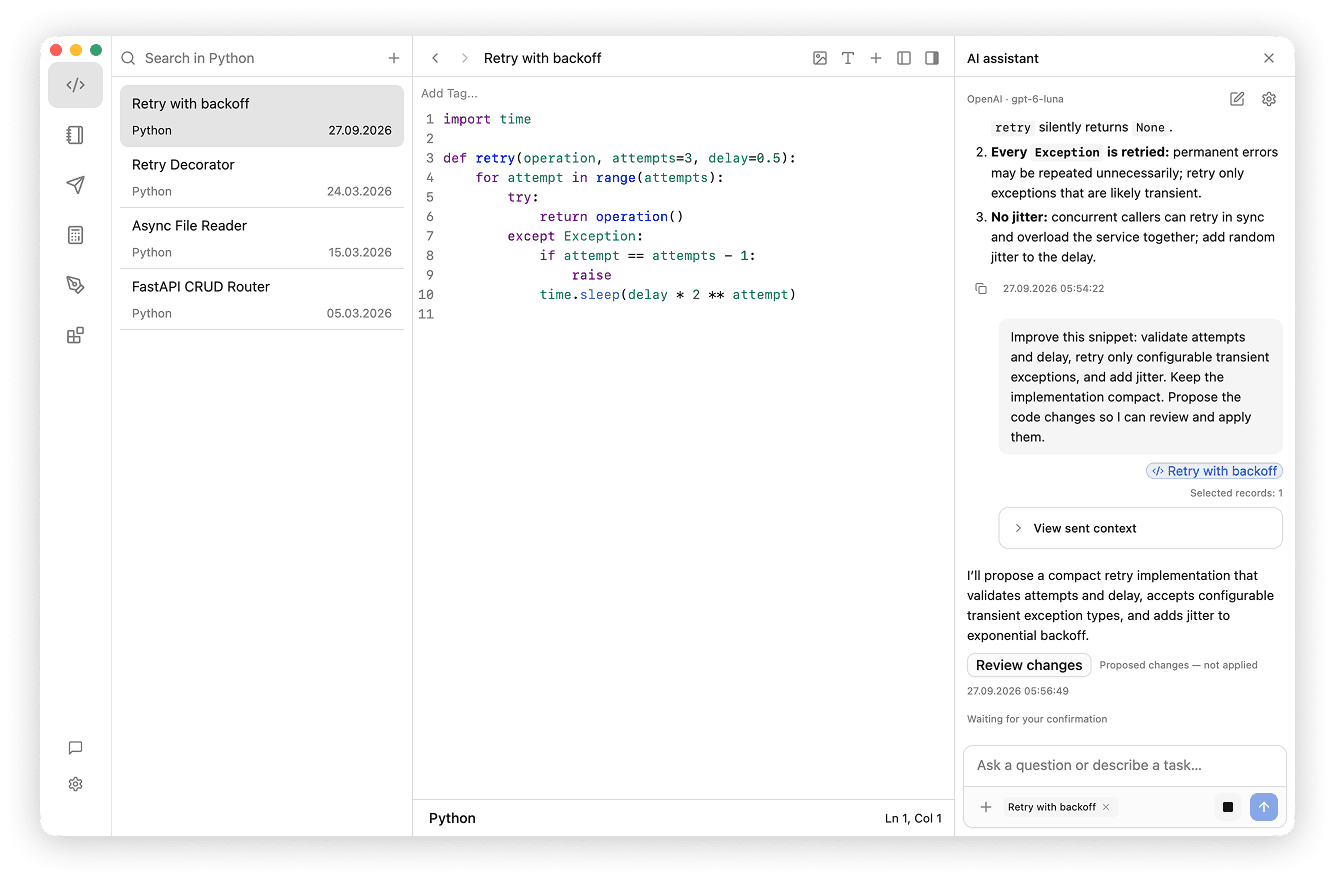
Open Review changes to compare Before and After, then choose Apply changes or Reject changes.
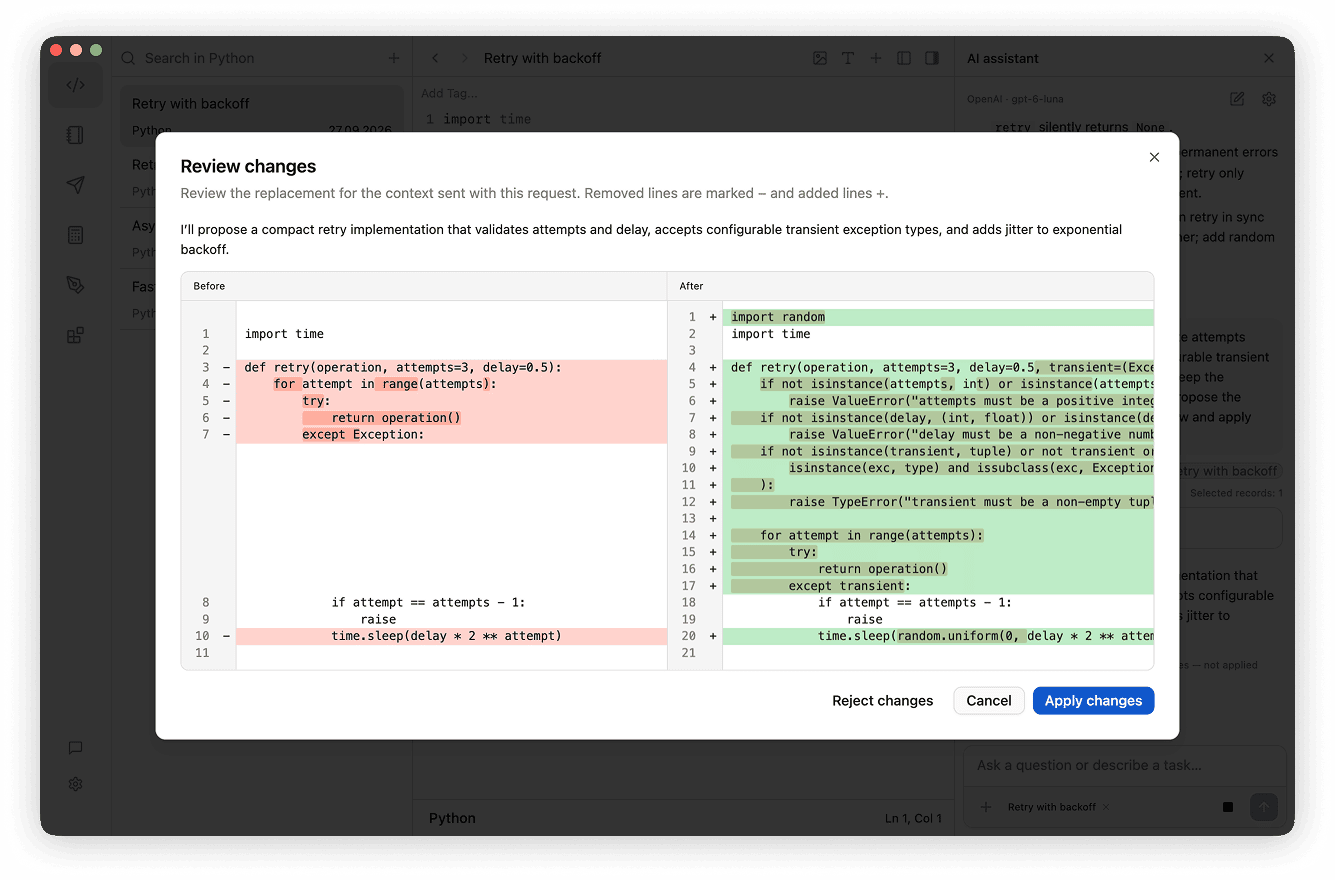
If the source changed since the preview was prepared, ask for a fresh preview. Code or Markdown shown only in an answer does not change your records.
Code and Notes edits use normal editor saving. Changes to saved records are written to the vault. Changes to the open HTTP draft remain unsaved until you choose Save or ask the assistant to save them. Save or discard an existing HTTP draft before asking to change the saved request.
Use Undo task changes to undo the task’s edits during the current session, subject to the exceptions below. Unrelated manual edits remain intact. If you changed an affected field afterward, Undo reports a conflict instead of overwriting it. Undoing creation moves the new record to Trash; a new folder must be empty before it can be removed.
Changes that cannot be undone
Network requests, exported files, cleared HTTP data and permanent deletion cannot be reversed with task Undo. Deleting folders, tags, fragments or environments also has no Undo. Folder deletion removes descendant folders and moves their records to Trash; tag deletion removes its assignments. Review the affected items before confirming.
Guide an Active Task
Answer questions and confirm actions in their cards, or complete the requested dialog. The task continues automatically.
- Update current task changes the direction of ongoing work. Changes already completed remain in place.
- Next task queues a separate request with its own context. The queue pauses after a stopped or failed task; use Start queue when ready to continue.
- Stop ends assistant work and keeps partial text and completed changes. Running application operations have their own Stop control; stopping the chat does not retract a sent request or undo an edit.
- Retry, when available, repeats the latest failed or interrupted response with its original context. After corrections, clarification replies or completed actions, send a new request instead.
If a task fails partway through, check the action result: completed changes remain applied.
Run HTTP Workflows
Ask the assistant to create requests, organize collections, update authentication or environments, save a draft, send a request, or run a collection. For example:
Add a status 200 check to this request, save it, run the collection and summarize any failures.
Before sending, inspect the confirmation card’s request, destination, environment, body summary and script state. A collection run shows the requests and their order. Changed request data or environment requires a fresh confirmation. A combined save-and-send action does not send if saving fails.
Sending uses the same environments, cookies and script permissions as the HTTP editor. Script trust requires separate confirmation; approving Send does not grant it. Scripts can change the final outgoing request after you confirm.
The assistant can inspect the completed response or collection run, explain failures and use the results in later steps. The latest response is available even when request history is disabled. It can also connect and exchange WebSocket messages, inspect history and console output, manage cookies, and clear HTTP data.
For binary bodies or multipart file rows, the assistant opens a file picker for you. Enter protected environment values in the local environment editor rather than in chat.
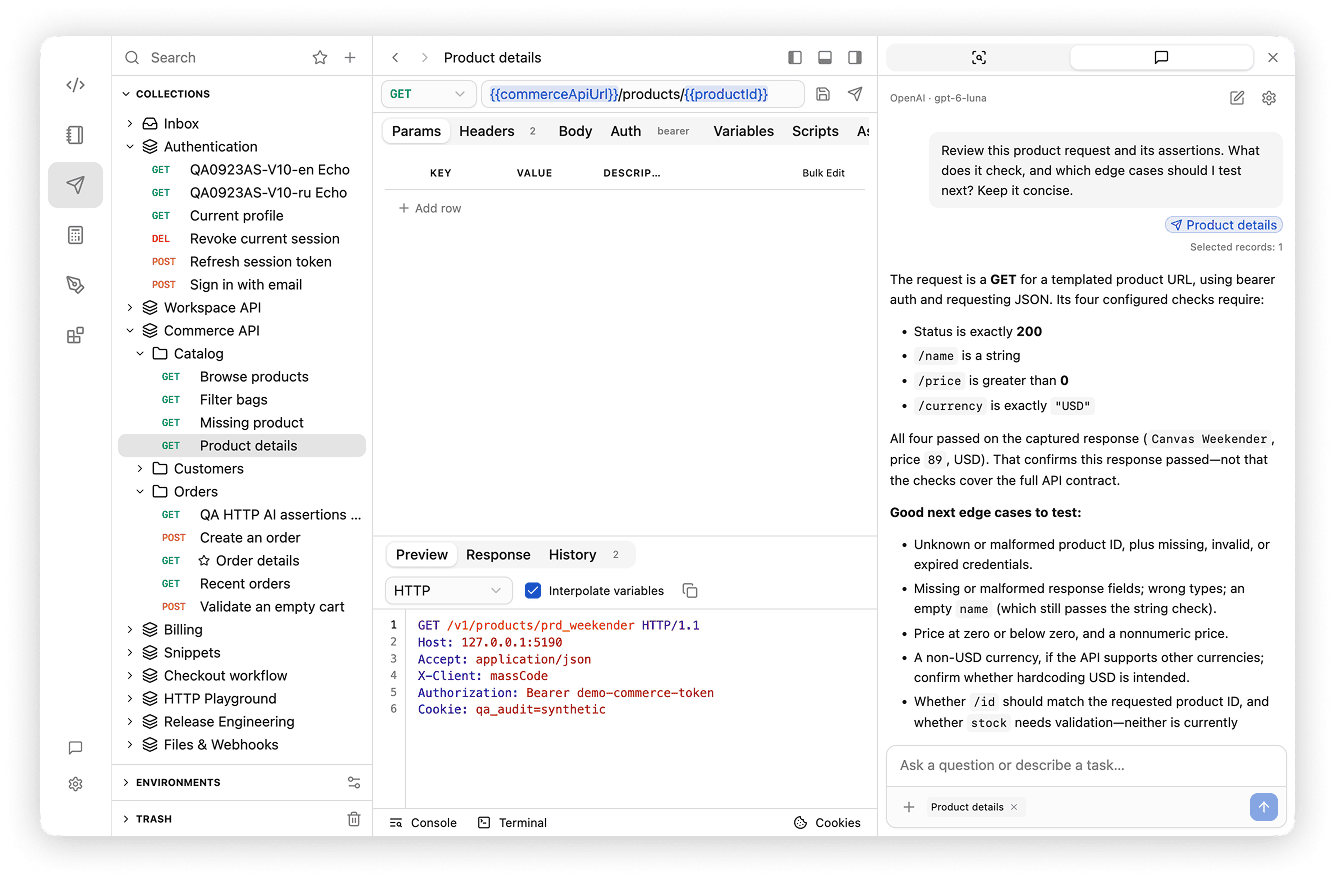
Analyze an HTTP Response and Add Checks
Send a request, then ask “Why did this return 401?” or “Add a check that the status is 200 and the response has a numeric id.” An analysis question does not change or send the request. Asking to add checks appends them to the current draft while keeping existing checks. Adding checks alone does not save or send it.
The assistant can read the draft, the last execution and its response, including captured outgoing headers and redirects when available. Binary bodies and missing portions of truncated responses are unavailable. State expected business values when you need precise checks; a value in one response is not necessarily a rule for every response. HTTP assertions do not apply to WebSocket messages.
Import and Export
Ask to import from a supported source, such as an Obsidian folder or Postman collection. Choose the source in the import dialog, inspect the preview and warnings, then import. The assistant can continue with the imported records afterward. Closing the dialog after import has started does not cancel it.
Ask to export a note as HTML or PDF, or a Notes folder as a static site, then choose the destination in the save dialog. An open note’s export can include unsaved editor text. Check export warnings for diagrams or assets that could not be rendered.
Use Application Views and Settings
You can ask the assistant to open a record or fragment, find text, format code, copy content, switch views or export a rendered image. In Notes, it can insert an image from the clipboard, move sections, open a mindmap or presentation, and move a graph node without opening its note. Graph positions are temporary, as with manual dragging. Opening executable Code Preview requires confirmation.
The assistant can change settings such as appearance and editor preferences. For file selection, Storage operations and provider setup, complete the corresponding application dialog; enter provider keys locally. Storage or provider changes end the current task and clear its queue. Start a new task to continue with the new settings.
Conversations and Privacy
The conversation is shared across Code, Notes and HTTP. Closing the panel or switching spaces keeps the conversation and does not stop generation. New chat clears the chat, attachments and queue, then attaches the currently selected item. Reloading, restarting or changing vaults also clears the conversation.
Long conversations may exceed the request size limit. Older complete exchanges are then omitted from the next request, with a notice in the chat; they remain visible. If the current message or attachment is too large, select a smaller section.
The configured provider receives your messages, included history, custom instructions, attachments and records the assistant reads. HTTP data masks recognized credentials and known secret values, but arbitrary sensitive text in code, notes or response bodies may still be shared. Cookie values and protected environment values are not returned to the model. Selecting an upload file does not include its path or bytes in the model’s result.
API keys are stored with operating-system encryption outside your vault and are not included in vault sync. If secure storage is unavailable, you can still use a connection that does not require a key.
Semantic search runs locally with the built-in model and does not send records or queries anywhere.
For local processing, use a model running on your computer. A local server address alone does not guarantee this: Ollama can also serve cloud-backed models. massCode does not automatically switch to a cloud provider when a local server is unavailable.
MCP connects external AI clients to your vault. It is separate from the built-in assistant and does not need to be enabled to use it.
Troubleshooting
- Connection check failed: settings are saved before the check; failure does not undo them. Correct the connection details and check again.
- Connection check passes but chat fails: the check verifies access to the model list, not whether every listed model works in chat. Check that the selected model supports text chat and tool calling.
- Server unavailable: start Ollama or the LM Studio API server and verify its address and port.
- Authentication failed: replace the key in Preferences and save.
- Model unavailable: check the selected model ID and server address.
- The assistant answers but does not act: choose a chat model with tool calling support. A text-only response cannot search or edit records.
- First response takes time: a local server may be loading the model. You can stop while it loads.
- Context is too large: select a smaller section or start a new chat.
- An edit cannot be applied: reopen the target, attach its current text and ask again. Use a smaller selection if the text cannot be matched.