


Search
massCode has two search flows:
- Use the search field above a list to narrow the current space.
- Use the Command Palette to search across the app and add filters with the keyboard.
Search the current list
The search field above a list searches the items in that space:
- Code searches snippets.
- Notes searches notes.
- HTTP searches requests.
Click the search field at the top of the list, or press Cmd+F on macOS and Ctrl+F on Windows and Linux.
List search respects the current sidebar context. If you select a folder, tag, or library view first, the search field narrows that selection instead of searching the whole space.
Examples:
- Select a Code tag, then search to find matching snippets inside that tag.
- Select a Notes folder, then search to find matching notes in that folder.
- Open Favorites, Trash, Tasks, Today, or Upcoming in Notes, then search inside that view.
- Select an HTTP folder, then search for matching requests inside that folder.
Clearing the search text keeps the same sidebar selection active.
Search from the Command Palette
Open the Command Palette with Cmd+P on macOS or Ctrl+P on Windows and Linux.
The palette can search:
- snippets
- notes
- HTTP requests
- spaces
- commands
- recently opened items
Snippets, notes and HTTP requests are found by the words in their names and text:
- snippets: name, description, fragment labels and fragment content
- notes: name and content
- HTTP requests: name, method, URL path and description; the host, headers, query parameters and body are not searched
Words match whole words and their simple forms, so test also finds tests and testing. The last word you type also matches the beginning of longer words, so results appear while you are still typing. Part of a word inside a longer identifier, such as auth in useAuthStore, matches only in the record name.
Among results with similar relevance, items you open often move higher over time.
With search by meaning turned on, the palette also finds records related to your query by meaning.
Scope the palette to a space
Use @ to search in one space.
- Open the palette.
- Type
@. - Select Code, Notes, or HTTP.
- Type your search query.
You can also type the scope directly:
@code auth@notes release@http webhook
Press Esc to leave the active scope and return to the full palette.
Add filters in the palette
Use filter tokens when you want to narrow Command Palette search by folder or tag.
Tags
Type # to show tag suggestions. Select a tag to add it as a chip.
Examples:
@code #vue composable@notes #backend migration
Tags are available in Code and Notes.
Folders
Type / to show folder suggestions. Select a folder to add it as a chip.
Examples:
@code /Shell docker@notes /Development backend@http /Webhooks stripe
Nested folders can be selected by path, such as /Work/API.
Work with search chips
The palette shows active scope and filters as chips in the input.
- Click the
xon a chip to remove that scope or filter. - Press Backspace in an empty input to remove one chip at a time.
- Removing a filter recalculates the search without clearing the remaining query.
You can combine a space, a folder, a tag, and text query when the combination applies to that space.
Example:
Notes /Development #backend migrationThis searches Notes for migration inside the Development folder with the backend tag.
Search by meaning
Search by words finds records that contain what you typed. With semantic search turned on, the palette also finds records related by meaning, even when the query is in another language. For example, дорожная карта (Russian for "roadmap") finds the Orbit roadmap note. Results by words appear as you type. After a short pause, results by meaning are added below them; results already shown by words keep their order. While this happens, the footer shows Searching by meaning....
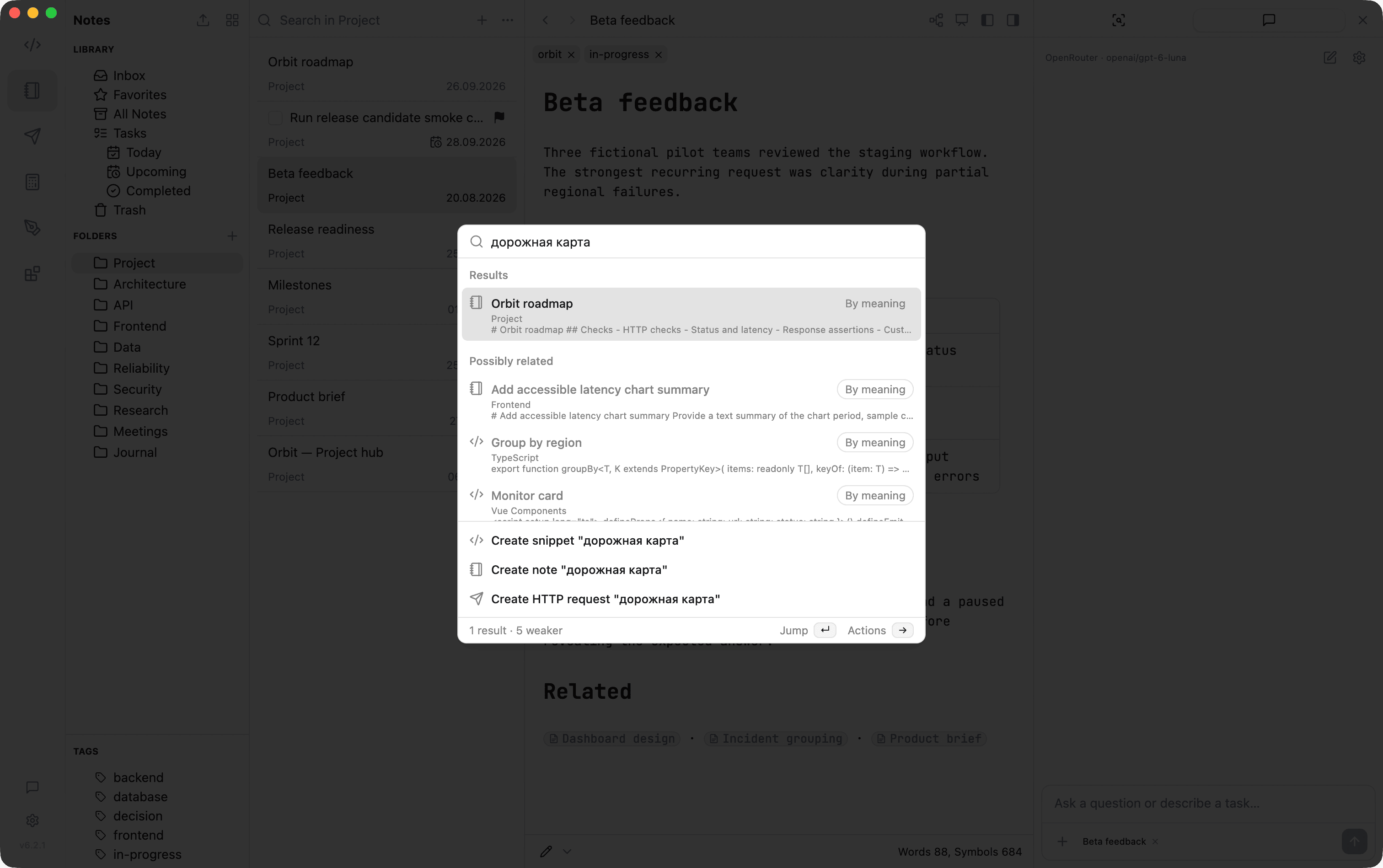
Each result shows why it was found:
| Label | Meaning |
|---|---|
| Matches the name | The record name matches your query. |
| Has your words | The record text contains your words. |
| By meaning | The record is related to your query by meaning. |
| Words and meaning | The record matches both by words and by meaning. |
Under the title, a result shows a short excerpt from the record; words that matched are highlighted. A result found only by meaning shows the start of the matching part of the record without highlighting. A result that matches only by name has no excerpt.
Strong matches appear under Results. Weaker matches appear below them under Possibly related: the first three are shown, and the rest are collapsed into a N more weaker matches row. Select it and press Enter, or click it, to show them. The footer shows how many results and weaker matches were found.
Press Enter to open the selected result, including one under Possibly related. The first result is selected by default. While the palette is still searching for a changed query, Enter does not open results of the previous query and does not create a new item. Press Shift+Enter to create an item from the query instead. See Create From Search.
If nothing matches, the palette suggests trying words you remember from the record or describing it in your own words. The create actions from Create From Search are still available.
Space scopes such as @notes, tag filters and folder filters work with both kinds of search.
The AI assistant uses the same search when it looks for records in the vault.
Turn on semantic search
Run Turn on semantic search from the Command Palette. It downloads the built-in model and opens Preferences → Semantic Search, where you can follow the download and indexing progress.
You can also open Preferences → Semantic Search, set Source to Built-in model and click Download model (~210 MB). The model is stored in the app data folder on this computer, outside your vault, and runs offline after download. Use Remove model to delete it and its index.
To turn semantic search off, set Source to Off. The palette and the assistant keep searching by words.
After the model is ready, massCode indexes your snippets, notes and HTTP requests in the background and shows progress under Index. Long records are split into chunks, so progress is counted in chunks, for example Indexing 120 of 800 chunks. When indexing finishes, Index shows the number of indexed records. The model indexes on two threads to keep the computer responsive, and indexing also starts shortly after the app launches. For HTTP requests, only the name, method, URL path and description are indexed. Changed records are reindexed in the background when you search.
While the model downloads or the index is being built, an icon with the progress in percent appears at the bottom of the space rail. Hover it to see the progress; search by words already works at this time. The icon turns red if the download or indexing fails. Click it to open Preferences → Semantic Search. The icon is not shown for short updates that finish within a second or when everything is ready.
Until the first index is ready, the palette finds records by words only and the footer shows Semantic search is warming up....
The index is stored only on this computer and is not synced with your vault. Switching to another vault builds a new index right away. Moving the vault to another folder keeps the existing index.
Semantic search is not available on Intel Macs. There, Preferences → Semantic Search explains this, and the palette and the assistant search by words.
Privacy
The built-in model works offline after download. Your records and queries are not sent anywhere for semantic search.
Windows requirement
The built-in model needs the Microsoft Visual C++ Redistributable. If the model cannot start, install it from Microsoft and click Download model again; files that were already downloaded are reused.
Troubleshooting
- No By meaning results: check Index in Preferences → Semantic Search. If indexing failed, the error is shown there and the palette keeps searching by words.
- If the built-in model fails to download, check your connection and try again.