


Drawings
Drawings is the visual canvas space inside massCode, powered by Excalidraw. Use it for diagrams, sketches, flows, and whiteboard-style notes that are easier to draw than to write.
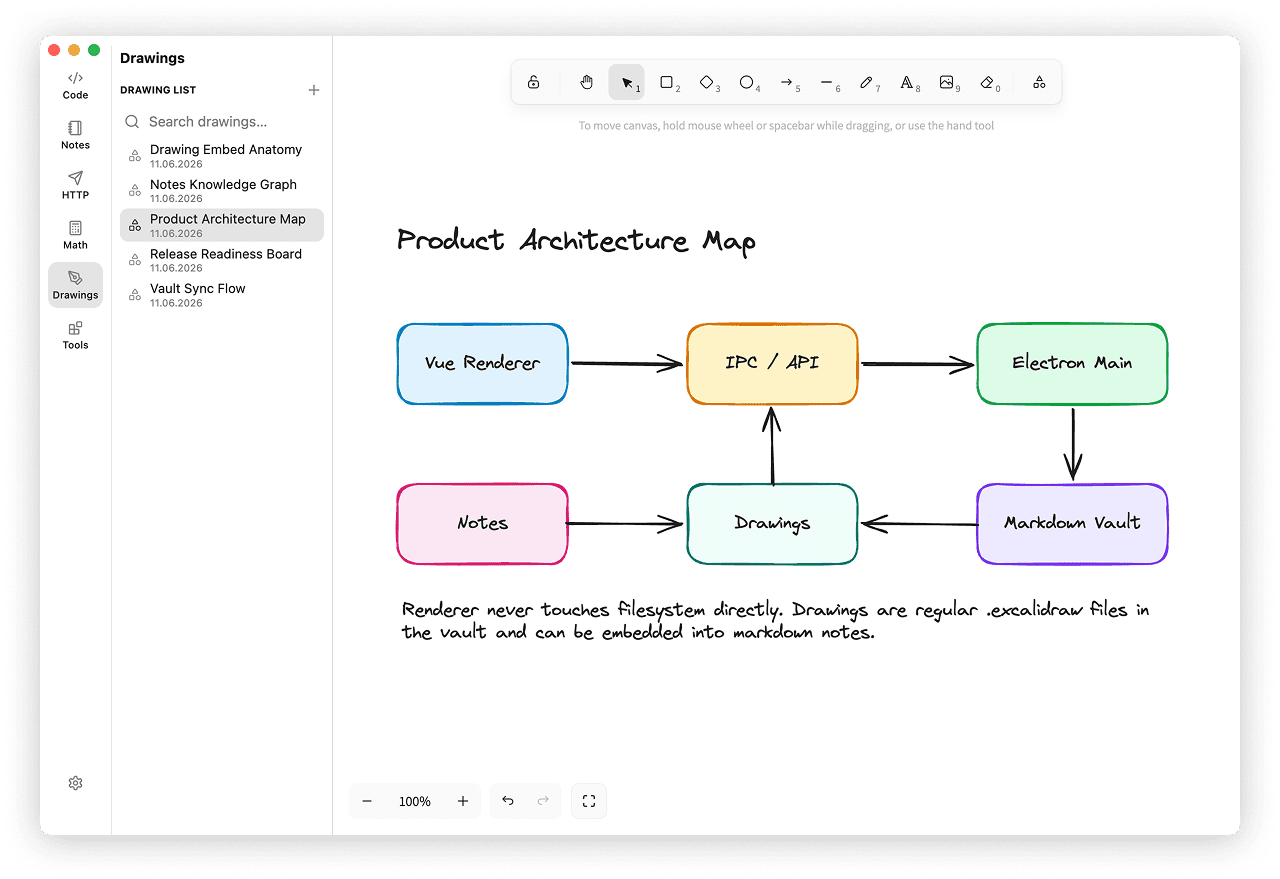
Access Drawings from the Drawings icon in the Space rail. The layout uses two columns: the drawing list on the left and the canvas on the right.
When to use Drawings
Use Drawings when a visual is clearer than text and you want it stored next to your snippets and notes.
- sketch architecture and flow diagrams
- draft UI wireframes and quick mockups
- capture whiteboard ideas during planning
- annotate screenshots and images
- illustrate notes with embedded drawings
Creating a Drawing
- Click the plus button next to Drawing List in the sidebar header.
A new drawing is created and its name becomes editable immediately, so you can type a title and press Enter.
Managing Drawings
The drawing list supports the same actions from a double-click, an inline input, or the right-click context menu:
- Rename - double-click a drawing, or choose Rename from the context menu.
- Duplicate - copy a drawing with all of its content.
- Export image - save the drawing as an image file.
- Copy Link for Note - copy a link you can paste into a note (see Embedding in Notes).
- Delete - remove the drawing. With a drawing selected, you can also press Delete.
Searching
Use the search field above the list to filter drawings by name.
- Type to filter the list as you go.
- Press Arrow Down / Arrow Up to move through the results, which open in the canvas as you go.
- Press Esc to clear the query.
The Canvas
The canvas is the full Excalidraw editor with its drawing tools, shapes, text, and styling controls. Your changes autosave as you draw.
- Pan and zoom are remembered per drawing, so each one reopens where you left it.
- Fit to content - the button in the canvas footer, next to the zoom controls, recenters and zooms the viewport so every element fits. Use it to jump back to your work after panning away.
Embedding in Notes
Drawings can be embedded directly in your markdown notes.
- In the drawing list, open the context menu and choose Copy Link for Note.
- Paste the link into a note. The drawing renders inline in the preview.
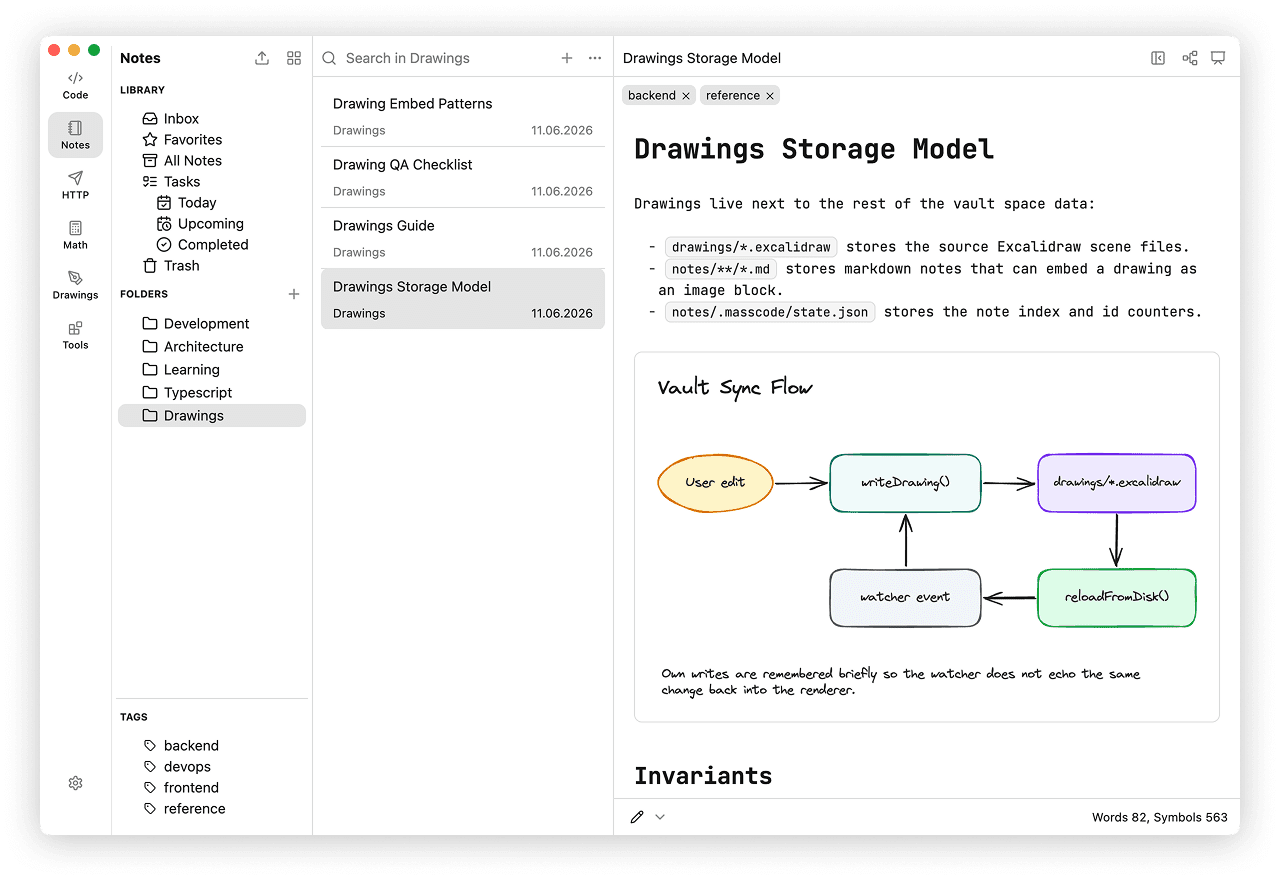
From an embedded drawing you can open it in the Drawings space, and use the back and forward controls to move through your navigation history.
Storage
Drawings are stored in your vault under the drawings folder as .excalidraw files, so they are backed up and synced together with the rest of your massCode data.