



Notes
>=5.0
Notes is the markdown writing space inside massCode. Use it for project documentation, technical notes, drafts, meeting notes, and personal knowledge bases when a snippet is too small and a full note makes more sense.
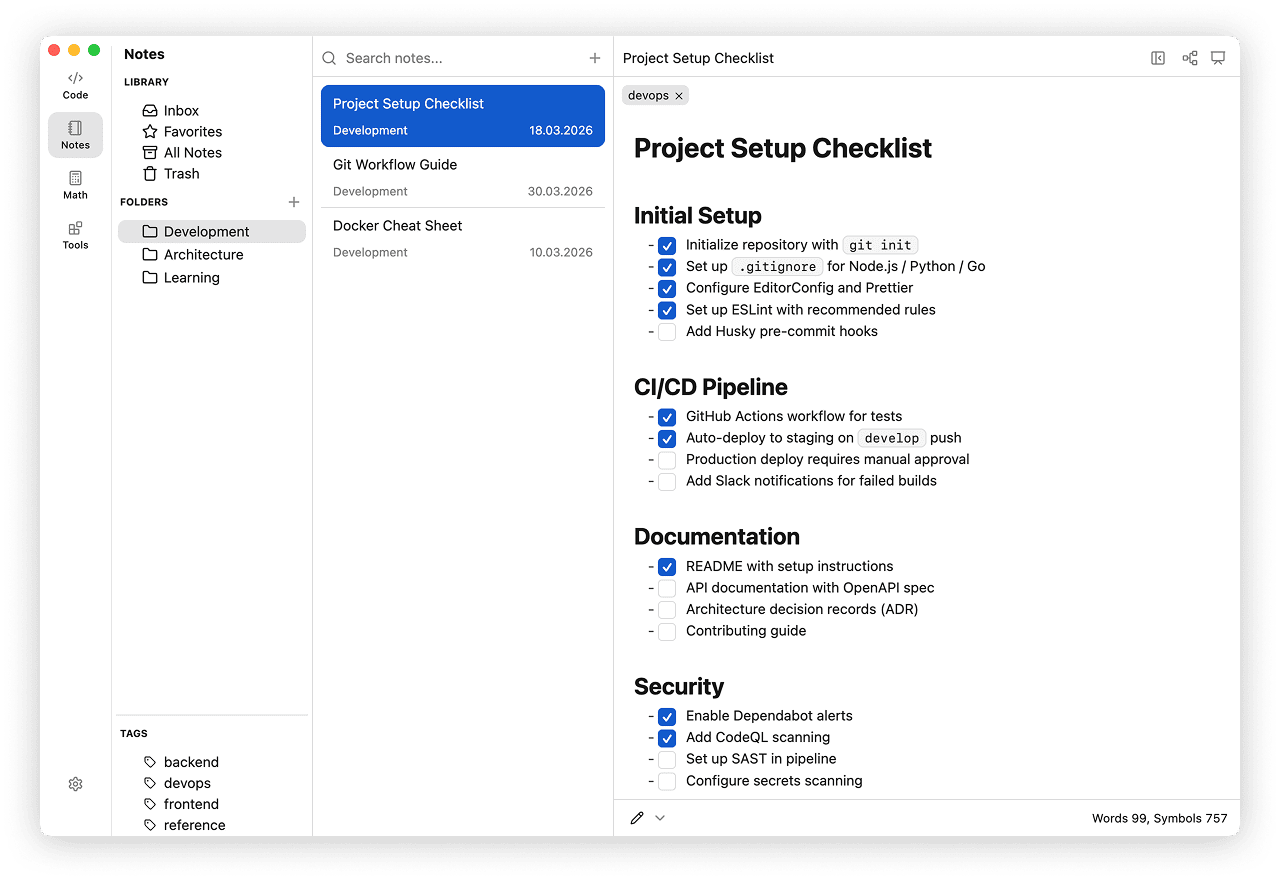
Access Notes from the Notes icon in the Space rail. The layout matches Code: Library on the left, notes list in the middle, editor on the right.
When to use Notes
Use Notes when you want to keep markdown documents close to your snippets and daily workflow.
- write technical documentation and reference material
- keep research notes or project logs
- prepare presentations from markdown
- turn note outlines into mind maps
Creating a Note
- Select "File" > "New Note" from the menu bar.
- Press Cmd+N on macOS or Ctrl+N on Windows or Linux.
Editor Modes
Switch between three editor modes using the controls at the top of the editor.
- Editor - raw markdown editing.
- Live Preview - split view with source and rendered preview side by side.
- Preview - read-only rendered view.
Editor Features
The editor is built on CodeMirror 6 and includes:
- Syntax highlighting for fenced code blocks
- Smart list indentation with automatic ordered list renumbering
- Tab / Shift-Tab indentation
- Table navigation between cells
- Mermaid diagram support
- Image embedding
- Callout blocks
For visual diagrams in notes, see Mermaid.
Editor Preferences
Customize the editor appearance and behavior in preferences:
- Font size and font family
- Code font family - separate setting for code blocks
- Line height - Compact, Default, or Relaxed
- Indent size
- Limit width - toggle to constrain the editor width
- Line numbers - toggle to show or hide line numbers